

So, quite a bit has happened since I last posted here. Back in January, I was made redundant – always a fun way to start a new year – but, as these things often do, it turned out to be more of a new beginning than an ending. By May, I’d landed a new job, and I was getting settled in nicely. Then came the question of what to do about my work machine.
The Great Windows Escape
My new employer was, shall we say, flexible about the operating system situation. I was “allowed” (and I use those speech marks deliberately, because the paperwork hadn’t quite caught up with reality by the time I’d already done it) to replace Windows with Linux. Honestly, if you know me, you’ll know this wasn’t a difficult decision. I’ve been running Arch on my personal machine with KDE Plasma as my desktop environment for a good while now, and KDE is, without a shadow of a doubt, my preferred way to experience Linux. So Kubuntu was the obvious choice – the stability and wide hardware support of Ubuntu’s base, wrapped up in a KDE bow. Job done. Mostly.
Enter the Snap, Stage Left
Here’s where things got a bit interesting. Ubuntu – and by extension, Kubuntu – has a bit of a habit of shipping Firefox as a Snap package rather than the more traditional .deb package you’d get if you installed it from a standard repository.
For those unfamiliar, a Snap is a self-contained, sandboxed application package developed by Canonical (the folks behind Ubuntu). The idea is that a Snap bundles all of its own dependencies and runs in isolation from the rest of your system, which makes it easier to distribute and update across different Linux distributions. In theory, this is quite elegant. In practice, it can cause headaches when applications need to communicate with each other – because that sandbox isn’t always keen on letting things through.
My first instinct, as it would be for many, was to simply remove the Snap version of Firefox and install the proper .deb release instead. And that worked! For a while. The slightly maddening thing is that Kubuntu has a tendency to occasionally switch back to the Snap version, whether after a system update or just seemingly on a whim. It’s like playing whack-a-mole with your own browser installation.
After one too many rounds of that particular game, I decided to take a different approach.
Right, Fine. We’ll Do It the Snap Way.
If the system is going to keep insisting on running Firefox as a Snap, then the least I can do is make it work properly as a Snap. The main thing I needed to sort out was getting 1Password – my password manager of choice – to integrate correctly with the browser extension. Normally, 1Password’s browser extension communicates with the desktop application via native messaging, but the Snap sandbox complicates that conversation somewhat.
After a bit of digging around, I managed to get it working, and I’ve written up the steps over on The Chalkboard – my no-nonsense technical knowledge base – but I’ll reproduce them here as well for convenience.
What You’ll Need First
1Password installed as a .deb package
1Password themselves recommend this, as running 1Password inside a container like Snap or Flatpak comes with its own set of limitations. Head over to 1Password’s Linux installation page for the current instructions.
Flatpak installed
Yes, I know – we’re trying to solve a Snap problem, and the solution involves Flatpak. Bear with me. Snap uses Flatpak’s commands for managing certain permissions, so you’ll need it available. You can install it with:
sudo apt install flatpak
You can remove it afterwards if you like, but there’s no harm leaving it around.
Step 1: Grant XDG Portal Permissions
We need to use the flatpak command to give XDG portal permissions, which allows 1Password to receive native messaging from the Snap-packaged Firefox:
flatpak permission-set webextensions com.1password.1password snap.firefox yes
Step 2: Add xdg-desktop-portal to 1Password’s Allowed Browsers
This is the bit that sounds the most counterintuitive. xdg-desktop-portal isn’t a browser – it’s the intermediary that will handle communication between the Firefox Snap and the 1Password desktop app. We need to tell 1Password to trust it:
echo "xdg-desktop-portal" | sudo tee -a /etc/1password/custom_allowed_browsers > /dev/null
Once that’s done, restart 1Password.
Step 3: Install the 1Password Extension in Firefox
Now, simply install the 1Password extension from the Firefox Add-ons site, and it should automatically detect and connect to the desktop application.
If everything’s gone to plan, you should see a rather satisfying “Integration status: Connected 🟢” in the extension settings – and as you can see from the screenshot below, it does indeed work, even with the Snap build of Firefox:
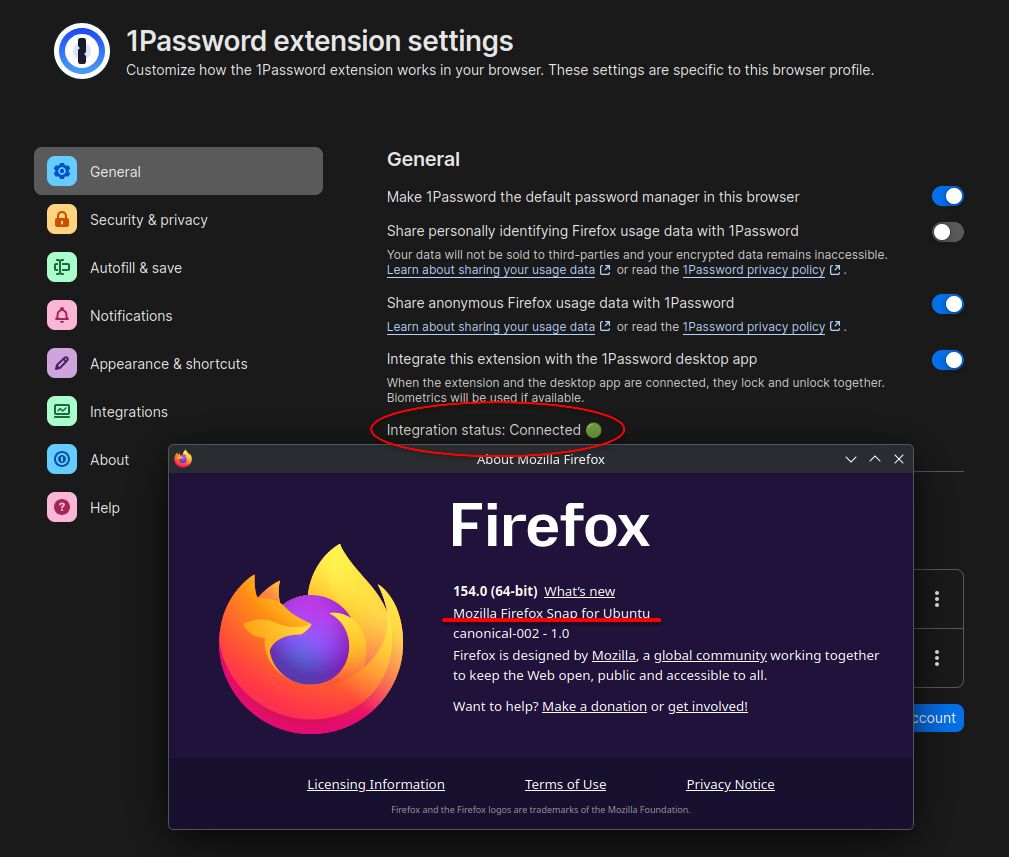
As you can see, that’s Firefox 154.0 (64-bit), the Mozilla Firefox Snap for Ubuntu – and 1Password is perfectly happy talking to it.
The full write-up lives over on The Chalkboard if you’d like the no-frills version.
Cheers

 Bitcoin
 Ethereum
 Loopring (L1 and L2)
 Immutable X (L1 and L2)
 Bitcoin Cash
 Dogecoin
 Basic Attention Token
 Polygon (MATIC)
 Cardano
 Litecoin
 Ripple (XRP)
 Stellar
 VeChain
 Akash
Akash
 Akoin
Akoin USD Coin
 Tether

